It's free and easy to get started
Sign up for a free account and get visibility in minutes
Free sign-up100+ ready-to-use integrationsEasy to learn dashboard designerOne-click sharing
Sign up for a free account and get visibility in minutes

Multi-account monitoring, integrations that work, team sharing. In short, CloudWatch dashboards that work for you.
Tired of jumping between AWS accounts to check your CloudWatch metrics? Frustrated that your business teams can't access the monitoring data they need? You're not alone.
While CloudWatch does a solid job of monitoring your AWS infrastructure, its native console has limits that can slow down your team. It's difficult to combine data from multiple accounts, share dashboards with stakeholders outside AWS, or integrate CloudWatch with your other monitoring tools.
That's where building SquaredUp's CloudWatch dashboards comes in. Here's how to create dashboards that actually work for your entire team – without the need for any AWS expertise.
Our dashboards offer the following benefits:
See everything in one place
Monitor all your AWS accounts and regions from a single dashboard. No more switching between consoles or losing track of which account you're in.
Share insights with anyone
Send dashboard links to stakeholders who don't have AWS access. Your finance team can finally see cost trends, and executives get the visibility they've been asking for.
Connect your full tech stack
Combine CloudWatch data with metrics from Azure, Google Cloud, or your monitoring tools. Get the complete picture, not just AWS-only views.
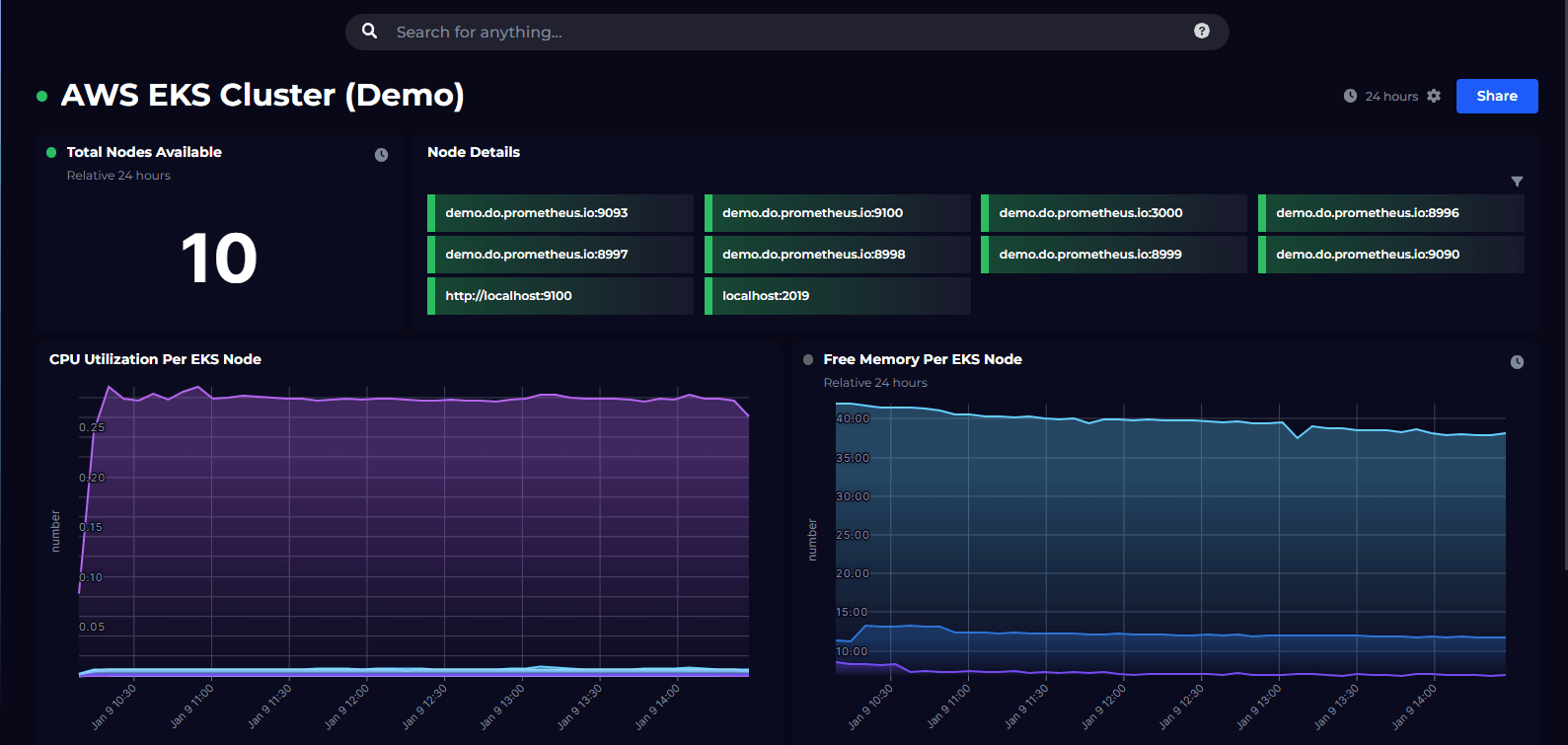
Here's an example of an AWS CloudWatch dashboard that combines data across regions and accounts.
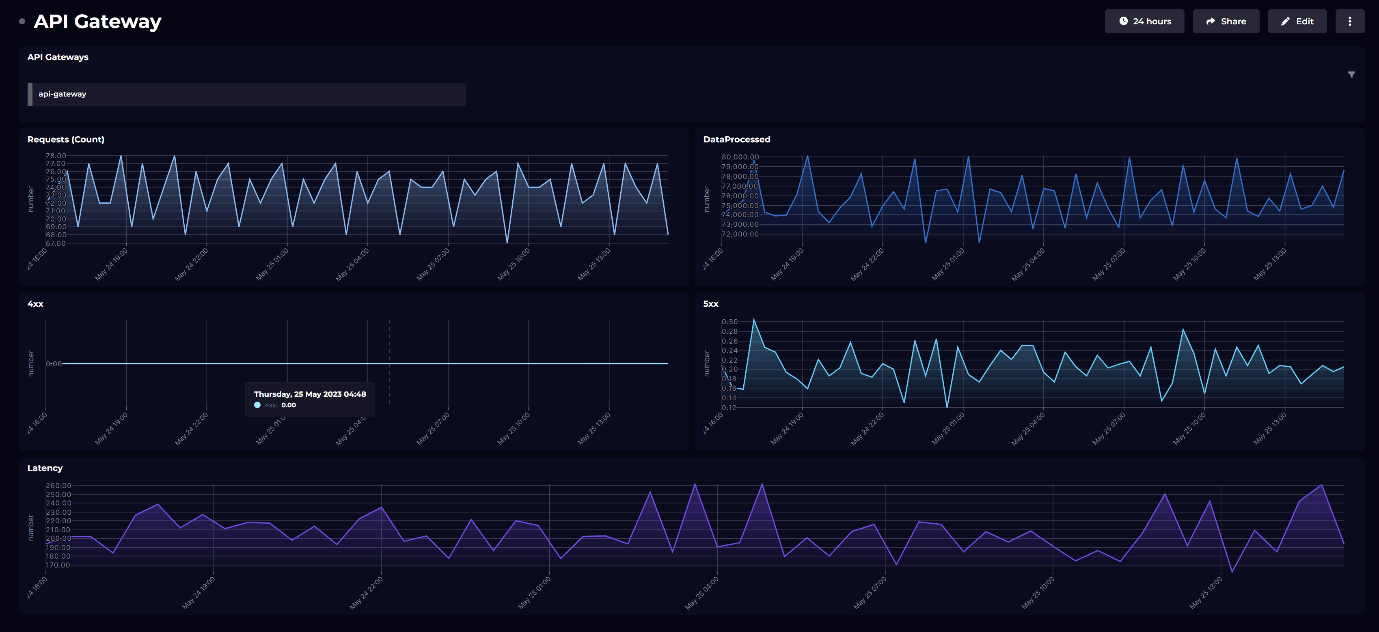
And here's another example that shows the wide range of data sources it is possible to connect to and visualize alongside CloudWatch.
If either of these appeals to you, read on to learn how easy it is to create an AWS CloudWatch dashboard in SquaredUp!
SquaredUp is free to use with unlimited dashboards for 2 users. Create a free account to see for yourself.
Creating an account and getting started with SquaredUp is simple. Just head over to squaredup.com/sign-up to register for a free account.

Once you’ve created and verified your account, you’ll be able to quickly connect to any data and start dashboarding! Let’s walk through the process.
Connecting to CloudWatch takes about 2 minutes. You'll use either IAM roles (recommended) or access keys to authenticate.

Tip: SquaredUp doesn't store your data. We connect via API and stream metrics on demand, so your data stays exactly where it is.
Feel free to check out our other blog posts to learn more after this walkthrough.

Once you’ve successfully configured the AWS CloudWatch data source, we index all of the objects and object types you have access to.
Skip the setup time with our out-of-the-box dashboards. They're pre-built with the metrics most teams need and populate automatically with your live data.
Available templates:
Each dashboard shows the metrics that matter most for that service. For example, the Lambda dashboard tracks function duration, error rates, and concurrent executions – exactly what you need to spot performance issues.
As an example, this is the Lambda dashboard. It shows metrics such as Lambda logs, duration, errors, and so on. To check out our other out-of-box dashboards head over here.

These metrics are helpful for understanding the amount of traffic being served by Lambda and could also highlight issues if total number of errors is high.
Edit existing dashboards
Build from scratch
Pro tip: Start with a template and customize it. It's faster than building from scratch, and you'll learn how tiles work.

If you choose CloudWatch Metric, you'll be prompted to choose the objects you want to fetch metrics for.

And next, you'll get a dropdown list of all the metrics that are available to you for the object type that you've selected. For example, the metrics below are for object type "Hosts":

If you choose CloudWatch Logs, you will be prompted to choose the Log Groups where your logs are stored and the query for getting the data.

Shaping:
Next, you can customize your tiles even further by sorting, filtering or grouping the data, and setting custom timeframes.

Visualization: choose from line graph, stacked bar, gauge and more visualizations.

Which visualizations are offered to you depends on the data available, for example Line Graph will only be offered if there is time series data.
From here, we can continue adding and adjusting tiles. For example, this AWS CloudWatch dashboard here that is made entirely using CloudWatch Metrics and Logs:

However, as it is very likely, you may also want to display this data alongside data coming from somewhere else. That is entirely possible as well, like what I've done here:

Here you'll notice I've got data from not only AWS CloudWatch, but many other tools you may be interested in. This includes Azure data, Application Insights data, Cost data and so on.
The fun doesn't quite end here. Using a feature called SQL Analytics, you can even combine datasets coming from different data sources and manipulate that to get actual insights, not just isolated dashboards.
Great dashboards don't just show data – they tell you when something needs attention. Set up alerts that notify the right people at the right time.
Create an alert:
Notification options:
Smart feature: Include dashboard previews in your alerts. Your team gets the context they need without opening multiple tools.


Lastly, now that you've created this AWS CloudWatch dashboard, you can easily share it with other teams without them having access to your tools or interfering with your data. You've got two options:
Instant sharing with secure links
No AWS access required. Recipients see live data without being able to modify your dashboards or access your AWS console.
Automated reporting
Set up dashboards to send themselves on a schedule:
Daily standups – Email the team dashboard every morning at 9 AM
Weekly reviews – Send executive summaries to leadership
Incident response – Auto-share relevant dashboards when alerts trigger
Real example: Our sales team gets a live revenue dashboard in Slack every morning. It combines AWS costs, application performance, and customer usage metrics – all in one view.
Here are some examples of workflows we use internally:
See how SquaredUp Product Manager, Dave Clarke, uses the beautifully simple dashboard designer to create an AWS dashboard in just a few clicks:
See your CloudWatch data in action – try for free!
You've got everything you need to create AWS dashboards that actually work for your team. Whether you're monitoring a single account or dozens, combining AWS with other tools, or sharing insights with stakeholders, SquaredUp makes it simple.
Ready to get started?
Create your free account and connect your first AWS data source. You'll have a working dashboard in under 5 minutes.
Want to see it in action first?
Book a 15-minute demo and we'll show you exactly how to build the dashboards your team needs.
Join 1,000+ teams already monitoring AWS with SquaredUp.
Happy dashboarding!